Someone lands on your website, likes what they see and decides to get in touch. Then they reach your form.
They face twelve compulsory questions, a tiny message box, a “Submit” button, and no explanation of what happens next.
Suddenly, enquiring feels like applying for a mortgage.
Good lead generation form design makes that next step feel straightforward. It helps potential customers share the right information, understand what they’re requesting and contact you without unnecessary effort.
For small businesses and startups, that matters. You might already spend time on SEO, social media or advertising to attract visitors. However, an awkward form can make it harder for those visitors to become useful enquiries.
You don’t need clever tricks or a complicated system to improve things. Start with a clear purpose, sensible questions and a form that works properly.
In this guide, we’ll cover 12 essential tips for designing lead generation forms, with examples you can apply to your own website.
- What Is Lead Generation Form Design?
- 1. Give Your Form One Clear Purpose
- 2. Ask for Information You’ll Actually Use
- 3. Use Clear Labels and Helpful Instructions
- 4. Keep the Layout Simple and Accessible
- 5. Design for People Using Their Phones
- 6. Write a Button That Explains the Next Step
- 7. Put the Form Where It Makes Sense
- 8. Build Trust Before Asking for Details
- 9. Use Extra Steps Only When They Help
- 10. Make Errors Easy to Understand and Fix
- 11. Confirm the Enquiry and Test the Follow-Up
- 12. Measure Useful Enquiries and Improve Gradually
- A Simple Enquiry Form Example
- Final Thoughts
What Is Lead Generation Form Design?
A lead generation form collects information from someone interested in your business. It might help them request a quote, book a consultation, download a guide or ask about a service.
Lead generation form design covers the questions you ask, how you arrange them, the wording around them and what happens after someone submits their details.
That includes practical decisions such as whether a phone number should be compulsory, where the form belongs on the page and how you explain an error.
The aim is to help suitable customers take the next step while giving your business enough information to respond usefully.
For the wider picture, our guide to using your website to generate leads explains how forms fit alongside your content, calls to action and contact options.
1. Give Your Form One Clear Purpose
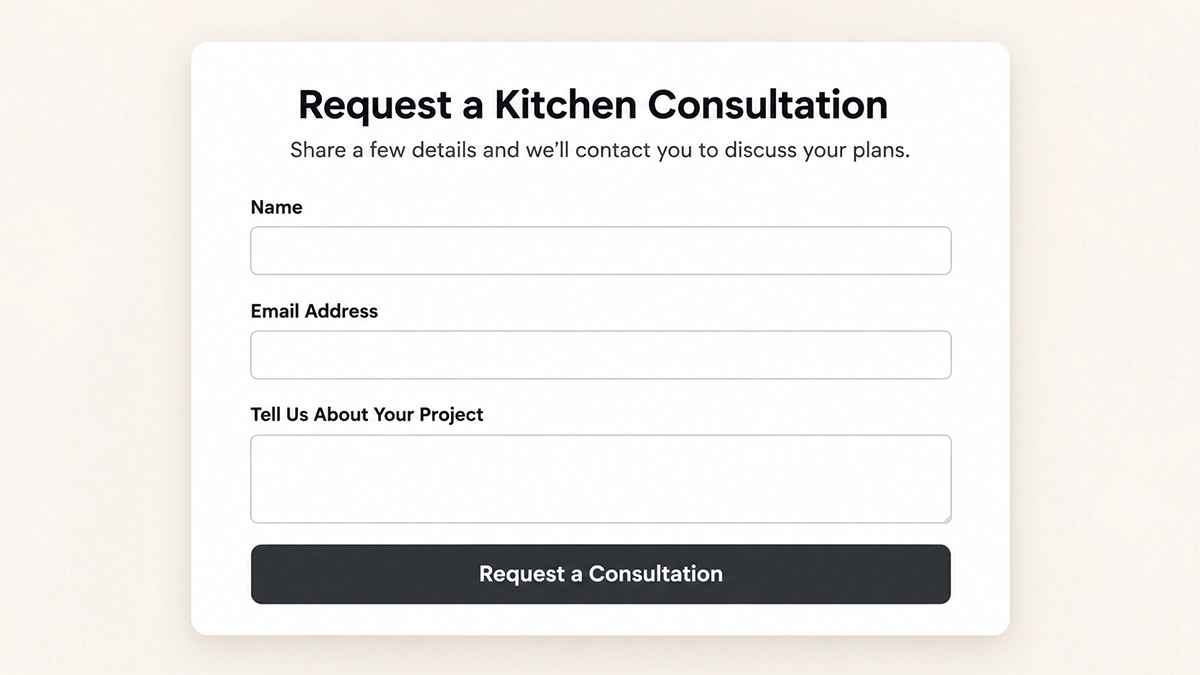
Before adding fields, decide what you want the visitor to do.
Are they requesting a quote, asking a question or arranging a consultation? Each action needs different information and a different explanation.
A general “Contact Us” heading might work on your contact page. However, a form beside your kitchen design service could use a more specific heading, such as “Tell Us About Your Kitchen Project”.
Then add a short explanation:
“Share a few details about your plans, and we’ll contact you to discuss the next steps.”
That explanation gives the visitor a reason to complete the form. It also sets a realistic expectation about what they’ll receive.
If submitting the form only requests a conversation, don’t imply that it instantly books an appointment or produces a finished quote.
The words around your form matter just as much as the fields. Our guide to writing website copy that converts can help you make that message clearer.
2. Ask for Information You’ll Actually Use
Every question should have a purpose.
For a basic enquiry, you might need a name, email address and message. A quote request could also need the service required and a postcode so you can check whether you cover the area.
Before making a field compulsory, ask: “Do we need this to handle the enquiry?”
For example, an accountant offering an introductory call probably doesn’t need someone’s full postal address at that stage. Meanwhile, a landscaper preparing a site visit may need a location.
Balance ease of completion with lead quality. Removing every useful question might increase submissions while leaving your team with little information to work with.
You can also make some questions optional. If a phone number helps but isn’t essential, label it accordingly.
There isn’t a magic number of fields that suits every business. Choose the smallest set that supports a useful next conversation.
3. Use Clear Labels and Helpful Instructions
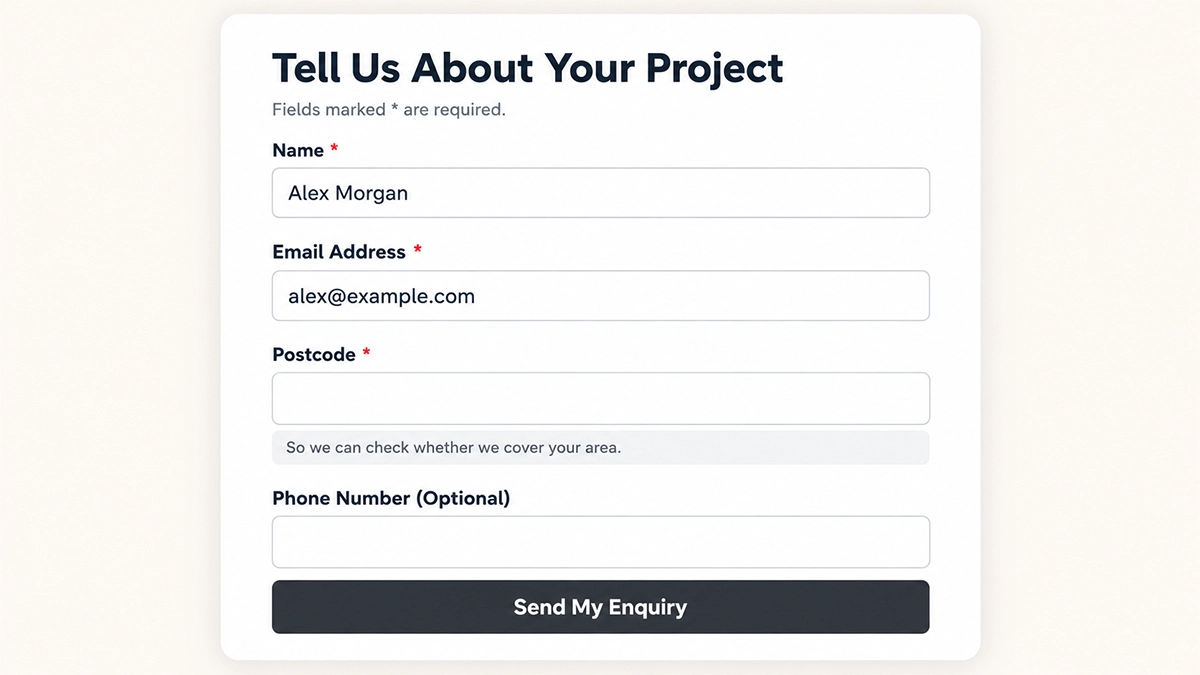
Visitors shouldn’t have to guess what belongs in a field.
Use familiar labels such as “Email Address”, “Service Required” and “Tell Us About Your Project”. Keep those labels visible as people type.
Placeholder text, which appears inside an empty field, can disappear when someone starts entering information. Therefore, it shouldn’t replace a proper label.
The W3C’s guidance on labelling form controls explains how labels help people understand and use forms, including those using assistive technology.
Add a short instruction when a question needs context. For example:
“Postcode: so we can check whether we cover your area.”
For a message field, offer a useful starting point:
“Tell us what you need help with and roughly when you’d like to get started.”
Also explain which fields are required. If you use an asterisk, tell visitors what it means. A form shouldn’t turn into a guessing game halfway through.
4. Keep the Layout Simple and Accessible
A clear layout helps people understand what to do next.
For many enquiry forms, a single column is a sensible starting point. It gives visitors an obvious route through the questions and adapts easily to smaller screens.
Group related questions together. For example, keep contact details near each other, then ask about the service or project.
Give fields, labels and instructions enough space. If everything feels squeezed together, people can struggle to tell which instruction belongs to which question.
Accessibility also needs attention. Check that visitors can move through the form using a keyboard, see which field they’ve selected and understand instructions without relying on colour alone.
If you use a form builder, check its accessibility features rather than assuming a good-looking template handles everything.
The W3C’s accessible forms tutorial provides useful guidance for you or the person building your website.
5. Design for People Using Their Phones
Your form needs to work when someone has a phone in one hand and very little patience in the other.
Test it on an actual mobile device. Can you read the labels, tap each field and reach the button without zooming in?
Use field settings that suit the information you’re collecting. An email field should bring up an appropriate keyboard, while a telephone field should make entering a number straightforward.
Where appropriate, enable browser autofill so visitors can reuse their contact details. Also check that pop-ups, cookie notices or sticky buttons don’t cover important parts of the form.
Keep free-text questions manageable. Asking someone to write a detailed project proposal on their phone is a fairly ambitious opening move.
However, don’t force a dropdown onto every question. If visitors need to describe something you can’t predict, give them a suitable message field.
6. Write a Button That Explains the Next Step
“Submit” describes what the system does. More specific wording can help people understand what they’re requesting.
Depending on the form, you could use:
- Request a Quote
- Send My Enquiry
- Request a Callback
- Download the Guide
- Ask About Availability
Match the wording to the actual outcome. If someone requests a callback, make sure your team has a process for calling them.
Keep the button easy to spot and give it enough space. Its text should remain readable against the background, and people should be able to tap it comfortably.
You won’t find a universal button colour that guarantees more enquiries. Start with clarity and contrast, then test changes against your own results.
For more ideas, see our clear call to action examples.
7. Put the Form Where It Makes Sense
The right placement depends on what visitors need to understand before they enquire.
Someone requesting an urgent repair may want a quick contact option straight away. Someone considering a substantial renovation may need to read about your services, process and previous projects first.
Place your form where it supports that decision. On a longer service page, an obvious button can take visitors directly to the enquiry section when they’re ready.
Also keep the form relevant to the page. A visitor reading about bookkeeping shouldn’t have to work through questions about every other service you offer.
For campaign pages, carry the offer through from the advert or email to the form. If someone clicks to request a consultation, that same action should remain clear when they arrive.
Our guide to landing pages for Google Ads explores that wider page experience.
8. Build Trust Before Asking for Details
Visitors may hesitate if they don’t know who’ll receive their information or what happens next.
Give them a clear explanation. You could say:
“We’ll use these details to respond to your enquiry.”
Only make promises that match how your business actually handles the information. Add an accessible link to your privacy notice so visitors can find more detail.
Relevant evidence can also help. A genuine review, a completed project or a short explanation of your process gives people something concrete to assess before they contact you.
If you offer a mailing list sign-up alongside the enquiry, keep it clearly separate and optional. Don’t assume that asking about your services means someone wants promotional emails.
The ICO’s guidance on electronic mail marketing explains the rules and exceptions in more detail.
9. Use Extra Steps Only When They Help
Some enquiries need more information than others.
A detailed renovation quote might need the project type, location, approximate budget, timescale and contact details. Presenting those questions across a few logical steps may make them easier to work through.
For example, you could organise the form into:
- Your Project
- Location and Timescale
- Your Contact Details
Show visitors their progress and let them move backwards without losing what they’ve entered.
However, a short contact form probably doesn’t need three separate screens. Extra clicks can create extra effort.
You can also show questions only when they’re relevant. For instance, selecting “Garden Landscaping” could reveal a question about the approximate garden size. Someone choosing “Regular Maintenance” may need different questions.
Good lead generation form design helps the visitor understand the process. Use extra steps and conditional questions when they make that process easier.
10. Make Errors Easy to Understand and Fix
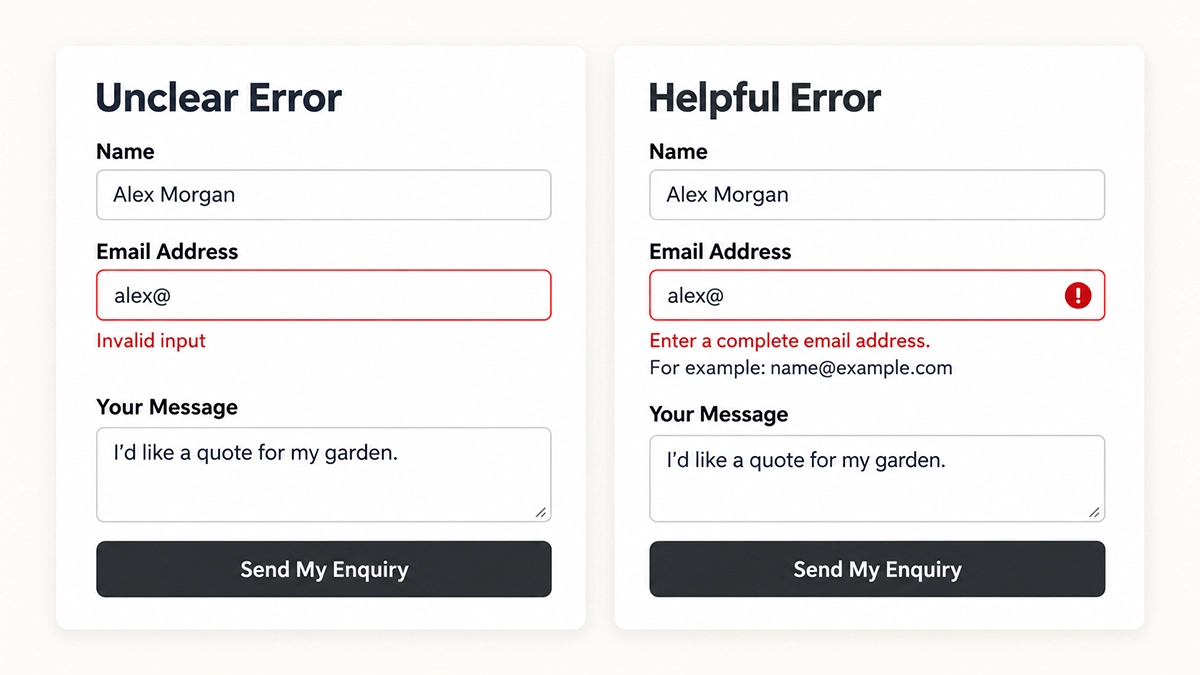
People make typing mistakes. Your form should help them recover.
If someone enters an incomplete email address, explain the problem beside that field. “Enter an email address, such as name@example.com” gives them a useful instruction.
“Invalid input” leaves them with more work to do.
Keep error messages specific, readable and connected to the relevant question. Don’t rely on a red border alone, because some visitors won’t see or understand that signal.
Most importantly, preserve the information they’ve already entered. Nobody wants to rewrite a message because they missed one compulsory question.
If the form fails to send, explain that clearly. Where practical, provide another contact option, such as an email address or telephone number.
The W3C’s guidance on form notifications covers clear feedback for both errors and successful submissions.
11. Confirm the Enquiry and Test the Follow-Up
After someone sends the form, confirm that it worked and explain what happens next.
For example:
“Thanks, we’ve received your enquiry. Our team will contact you within two working days to discuss your project.”
Choose a response time your business can realistically meet. If you don’t offer an immediate response, avoid wording that suggests you do.
Then test the process behind the form. Does the enquiry reach the correct inbox? Does any confirmation email arrive? Can your team identify which service the visitor asked about?
Use a real test submission after changes to your website, hosting or form plugin. Also check any connections to your customer management system.
Spam protection deserves attention too. Filter unwanted submissions while checking that genuine visitors can still complete the form.
If you need help checking or fixing existing forms, our website maintenance services can support the upkeep of your site.
12. Measure Useful Enquiries and Improve Gradually
Once your form works, look at how people use it.
Start with completed submissions and whether those enquiries suit your business. If your tracking setup allows it, also compare how many people see the form, start it and finish it.
For example, imagine 500 people visit a service page, 50 start its form, and 20 submit it successfully.
That means 40% of the people who started the form completed it. Meanwhile, the page generated submissions from 4% of its visitors. These measurements answer different questions, so keep their definitions consistent.
Track successful submissions rather than treating every click on the button as an enquiry. Also review spam, duplicate submissions and enquiries your business can’t fulfil.
Then make one meaningful change at a time. You might clarify a confusing question, remove an unnecessary field or improve the confirmation message.
For a website with modest traffic, a handful of extra submissions won’t prove that a change caused an improvement. Combine your numbers with customer feedback and practical testing.
Our guide to website conversion rates explains how to assess results in context.
A Simple Enquiry Form Example
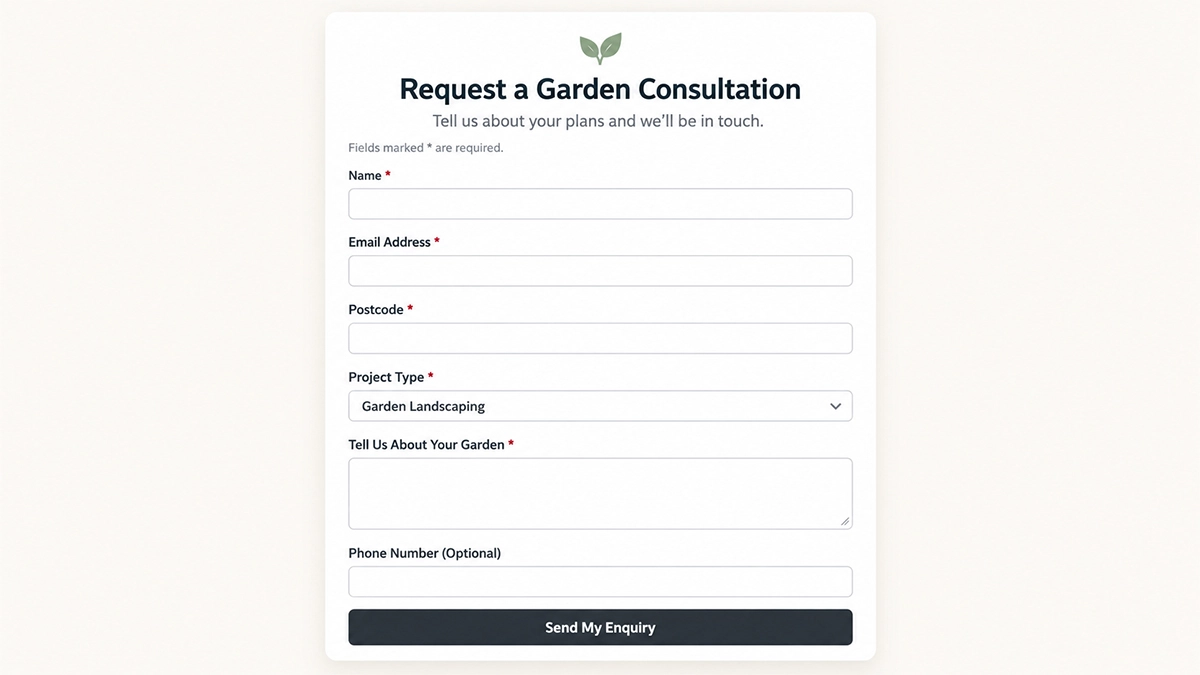
Imagine a small landscaping business that wants enquiries about new garden projects. Its form could include:
- Name: required, so the team knows who to address.
- Email Address: required, so they can respond.
- Postcode: required, to check the service area.
- Project Type: required, with a short list of relevant services.
- Tell Us About Your Garden: required, with a prompt to describe the work.
- Phone Number: optional, if email provides enough information for the initial response.
Above the form, explain that the team will review the details and contact the visitor to discuss the project. Use “Request a Garden Consultation” only if a consultation is what you actually offer.
This is a starting point, not a universal template. An accountant, tutor or cleaning company will need different questions. Keep the purpose clear and adapt the fields to your own enquiry process.
Final Thoughts
Effective lead generation form design combines clear questions, useful instructions and a dependable follow-up process.
Start by completing your own form as if you were a new customer. Check it on your phone, deliberately make a mistake and follow the enquiry through to your inbox.
That simple exercise can reveal improvements you’ve overlooked while focusing on the rest of your website.
At 404 Marketing, we create custom WordPress websites around your business and the people you want to reach. If you also need help attracting suitable visitors, explore our website marketing services.
Give people a clear reason to enquire and make that next step easy to complete.