
You’ve launched your website, added your services and told everyone you know about your business. But when someone nearby searches for what you offer, do they actually find you?
That’s where Google Search Console for local SEO can help.
It gives you useful information about how your website appears in Google Search. You can see which searches bring people to your pages, spot problems, and decide where to focus your next efforts.
And the good news? It’s free. You don’t need to become an SEO expert or spend every evening staring at graphs.
In this guide, we’ll cover the basics, explain what the numbers mean, and show you how to turn them into practical improvements for your small business or startup.
- What Is Google Search Console for Local SEO?
- Step 1: Set Up Google Search Console
- Step 2: Check Your Sitemap
- Step 3: Check Your Important Pages
- Step 4: Understand Your Performance Report
- Step 5: Find Searches With Local Intent
- Step 6: Choose One Useful Opportunity
- Step 7: Improve Your Titles and Page Content
- Step 8: Connect Your Pages With Internal Links
- Step 9: Check the Mobile Experience
- Step 10: Review What Happens After Your Changes
- A Simple Monthly Routine for Local SEO
- Frequently Asked Questions
- Need Help Making Sense of Your Search Console Data?
What Is Google Search Console for Local SEO?
Google Search Console helps you understand your website’s visibility in Google Search, and using it for local SEO means applying that information to the services and areas that matter to your business.
For example, a dog groomer in Newark could use it to investigate whether their website appears for searches about puppy grooming or hand stripping in the area.
However, Search Console and Google Business Profile do different jobs.
Search Console helps you monitor your website. Your Business Profile manages your business information on Google Search and Maps. Its performance reports include measures such as website clicks, direction requests and clicks on the call button.
Search Console doesn’t provide a dedicated Maps ranking report. Also, its location data works at country level, rather than town or postcode level.
Therefore, use both tools to build a fuller picture of your local visibility. Our local SEO checklist explains the foundations to work on alongside this guide.
Step 1: Set Up Google Search Console
First, open Google Search Console and sign in with a Google account your business controls.
Choose Add Property. A property simply means the website, or section of a website, you want to monitor.
For a website, you’ll have two main options:
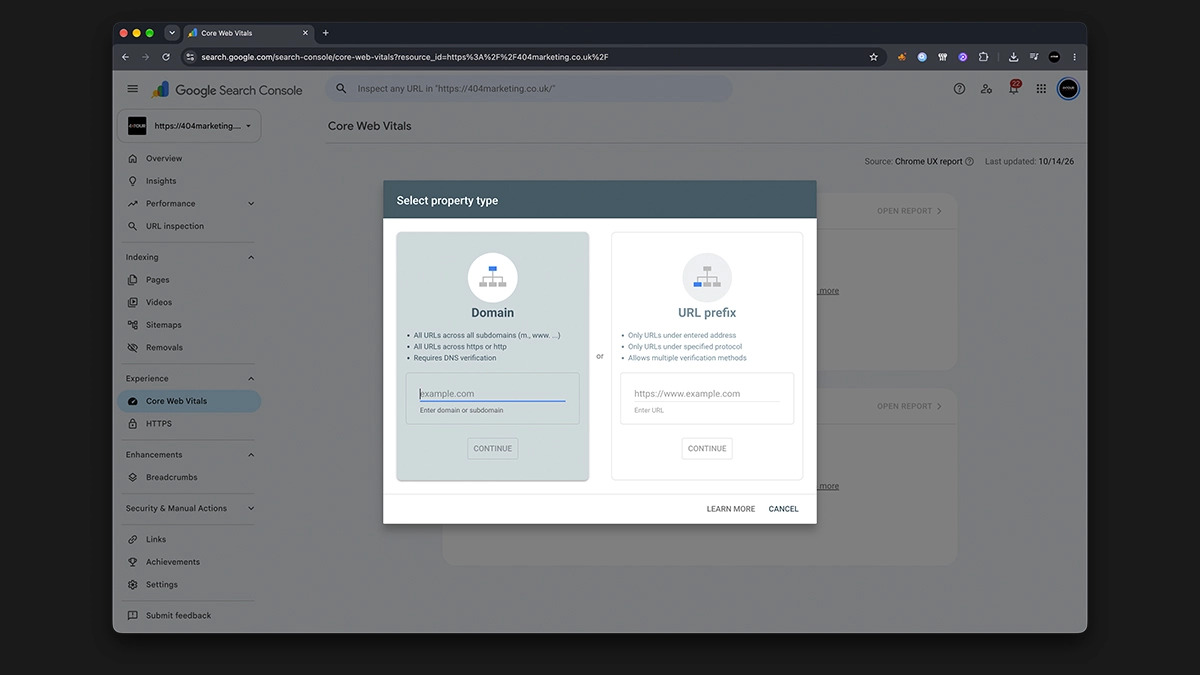
Domain: Covers your domain across different versions, including www and non-www, and HTTP and HTTPS. You’ll usually verify ownership through your domain’s DNS settings.
URL Prefix: Covers addresses beginning with the exact prefix you enter. It offers several verification methods, including an HTML tag or file upload.
A Domain property gives many small businesses a useful overall view. However, a URL Prefix property can suit you if you can’t access your DNS settings.
Google’s property setup guidance explains what each option includes.
DNS settings help direct internet services for your domain. If they’re unfamiliar, ask your website provider to add Google’s verification record for you.
Already have an agency or developer looking after your website? Ask whether they’ve set up Search Console and can grant you access. Keep your business involved in managing its own accounts.
Step 2: Check Your Sitemap
A sitemap is a file that lists the website pages you want search engines to discover.
Your website platform or SEO plugin may already create one. For example, WordPress users with Yoast can find it under Yoast SEO → Settings → Site Features → XML Sitemaps, then select View the XML Sitemap. Yoast’s sitemap instructions explain the process.
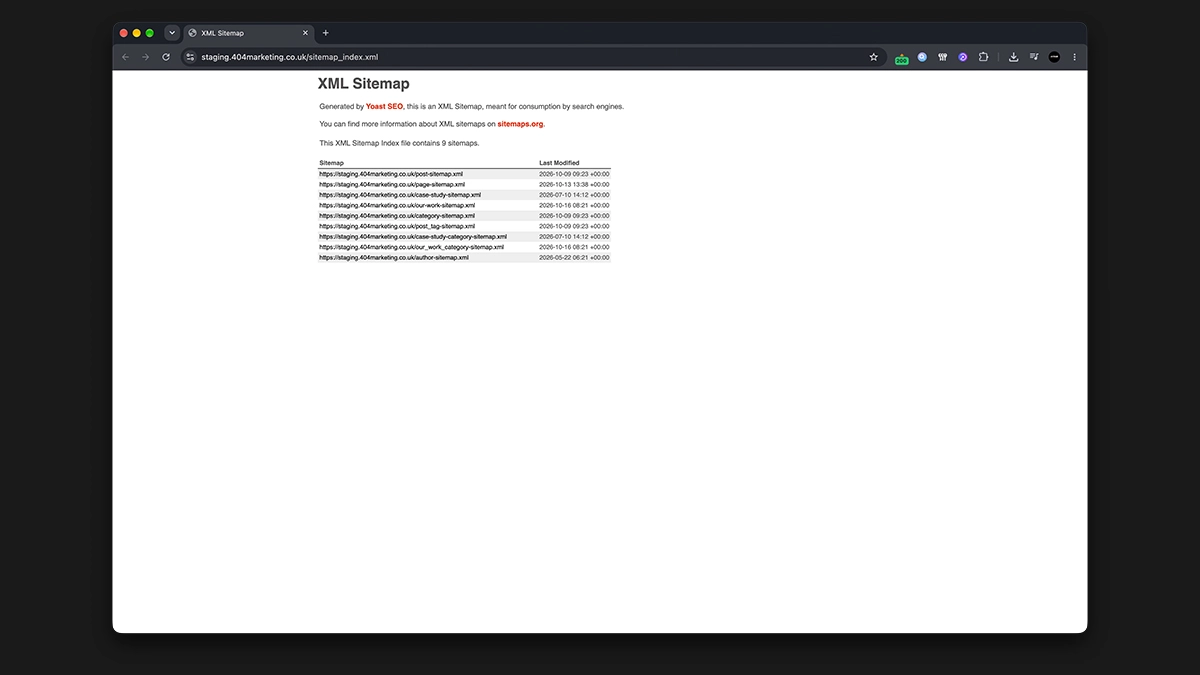
Next, open Sitemaps in Search Console, enter your sitemap address and submit it. If someone has already submitted the correct sitemap, check its status instead.
Google’s Sitemaps report shows whether it could read the file and highlights processing problems.
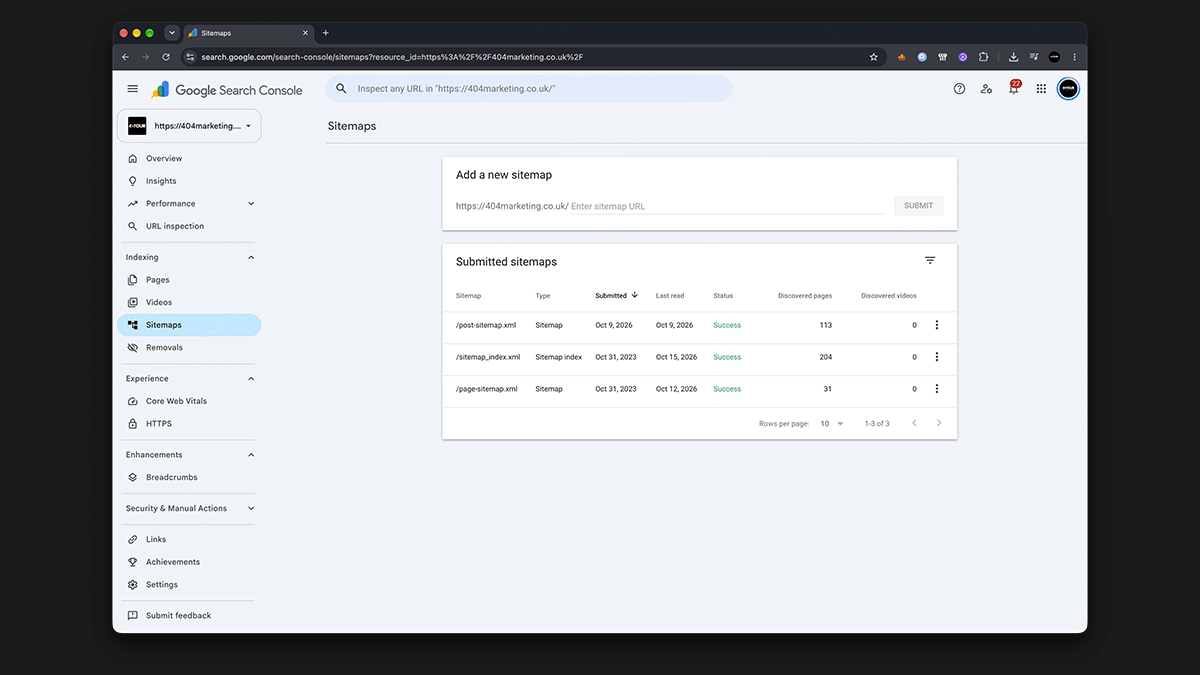
A sitemap can help Google discover your content, although small, well-connected websites may not need one. Also, submitting it doesn’t guarantee that Google will index every page or improve your rankings.
Think of it as useful housekeeping. It gives Google another route to your content.
Step 3: Check Your Important Pages
Before worrying about rankings, check whether Google has indexed your key pages. Indexing means Google has included a page in its database so it’s eligible to appear in search results.
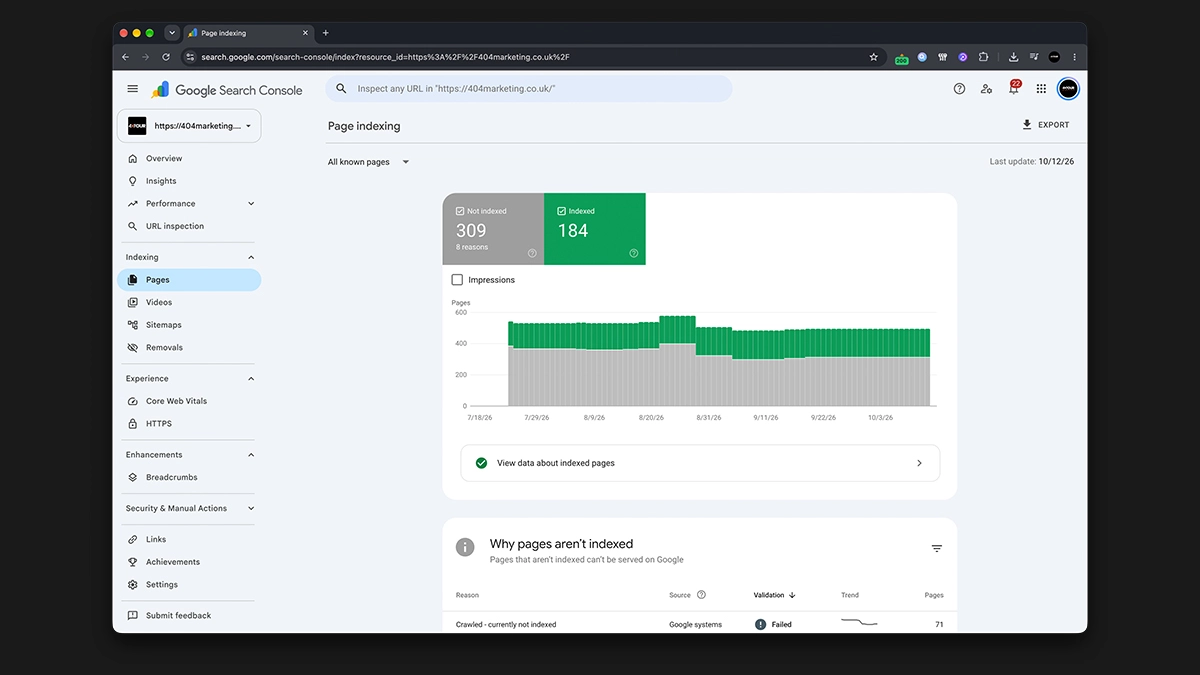
Start with your homepage, main service pages and any useful location pages.
Copy a page’s full address into the inspection bar at the top of Search Console. The URL Inspection tool will show information about Google’s indexed version and any reported obstacles.
If the page isn’t indexed, read the reason. For instance, your website may tell search engines to exclude it, or Google may treat another page as the main version.
Next, review Indexing → Pages for broader patterns. Google’s Page indexing guidance explains why some exclusions are normal. Redirects and duplicate addresses don’t all need their own place in the index.
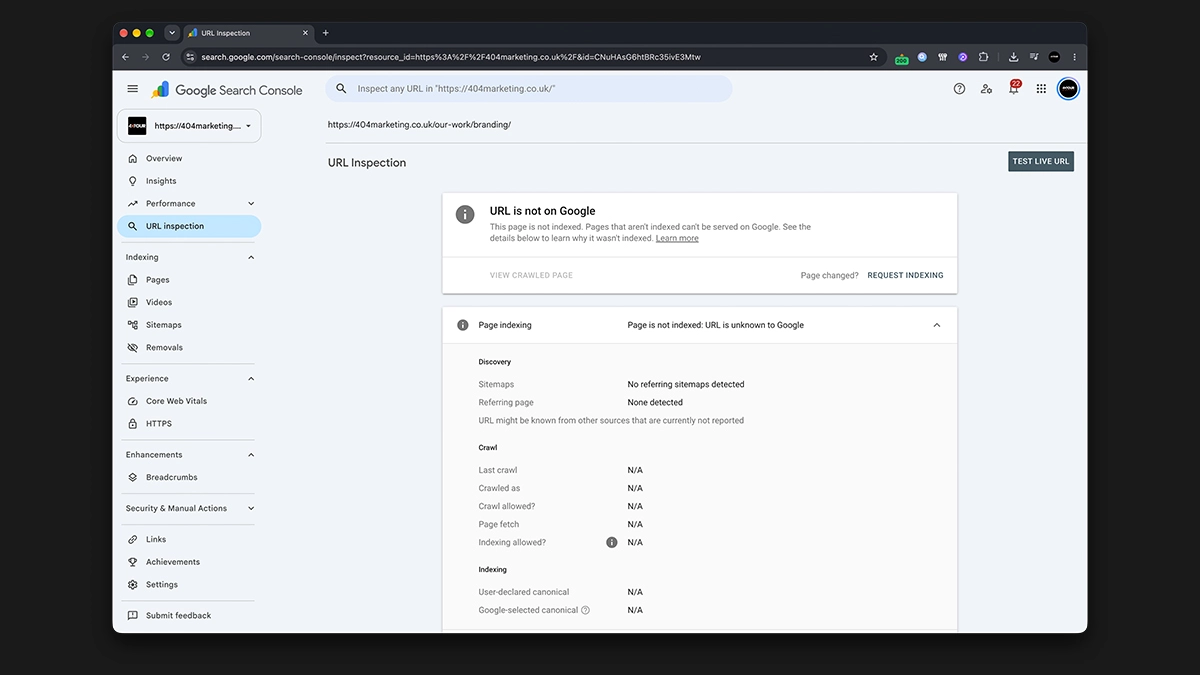
Focus on valuable pages that customers need to find. If the explanation feels technical, send the affected address and the report’s wording to your website provider.
Step 4: Understand Your Performance Report
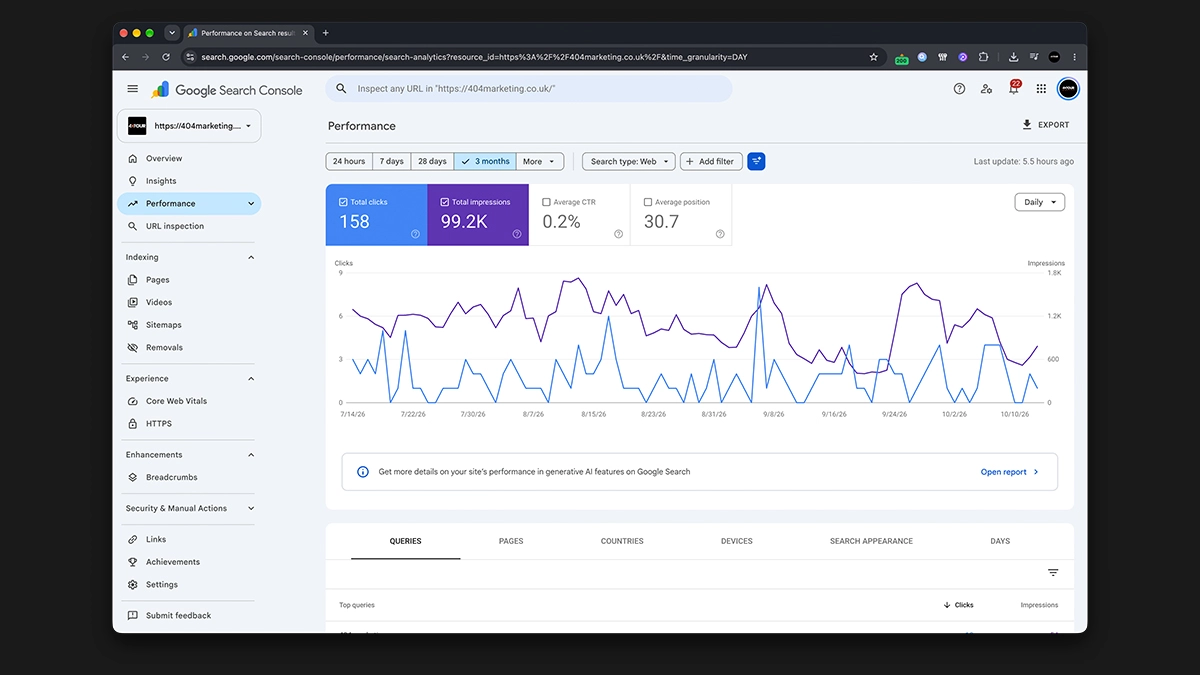
Now open the Performance section and select Search Results where that option appears.
Start with the last three months and keep the search type set to Web. This gives you a broader starting point than yesterday’s activity, particularly if your website gets relatively little traffic.
Google’s Performance report guide explains the four main measures:
| Measure | What It Means |
|---|---|
| Clicks | How many times someone clicked through to your website from Google Search. |
| Impressions | How often Google recorded your website appearing in its search results. |
| Average CTR | Your click-through rate: clicks divided by impressions, shown as a percentage. |
| Average Position | The average position of your highest result, across the searches included in your view. |
For example, 20 clicks from 1,000 impressions gives you a 2% click-through rate.
However, don’t treat average position as a fixed ranking. Different searches, locations and devices contribute to the figure. It won’t tell you that you rank fifth for every customer in Newark.
Instead, use these numbers to ask useful questions. Are more people seeing your service pages? Are relevant searches bringing clicks? Which pages deserve attention?
That’s how Google Search Console for local SEO becomes useful: it helps you choose your next action.
Step 5: Find Searches With Local Intent
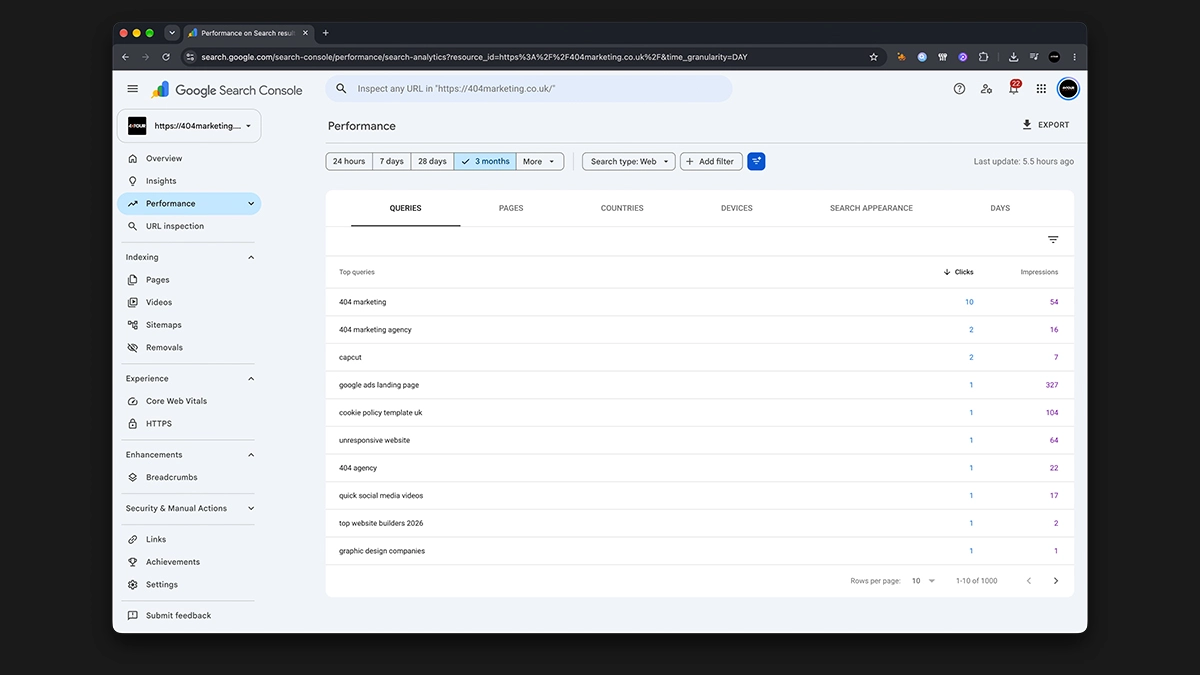
Below the chart, open the Queries tab. Queries are the words people searched before your website appeared in the results.
First, look for the towns, cities and areas you serve.
To narrow the list:
- Select Add Filter or the equivalent filter button above the report.
- Choose Query.
- Select the option for queries containing your chosen text.
- Enter a location, such as Newark, and apply the filter.
You might find phrases such as “puppy groomer Newark” or “dog hand stripping Newark”. Google’s filtering guidance explains these controls.
However, a query mentioning Newark doesn’t prove the searcher was physically there. Someone could be researching a service before moving house.
Equally, a local customer might simply search “dog groomer” without typing a place name. Therefore, review service terms as well as location terms.
Remember that Search Console shows searches connected with your existing visibility. It won’t reveal every keyword your potential customers use. Google also omits some queries for privacy, so a missing phrase doesn’t prove that nobody searches for it.
For a wider starting list, follow our guide to local SEO keyword research.
Step 6: Choose One Useful Opportunity
Once you’ve explored your queries, resist the temptation to rewrite your entire website before lunch.
Choose one service that matters to your business. Then look for a relevant search where you already receive impressions but attract relatively few clicks.
Click the query and open the Pages tab to see which page Google shows for it.
For example, imagine a dog groomer receives impressions for “puppy grooming Newark”, but Google sends people to a general homepage. That’s a useful prompt to review the website.
Does the homepage clearly explain puppy grooming? Would a dedicated service page help customers understand what happens during a first appointment?
Before creating anything new, check whether you already have a suitable page. Improving that page may be the most sensible starting point.
Also, consider the amount of data. One impression and no clicks won’t tell you much. Look for patterns across a meaningful period, rather than treating every row as a problem.
Google recommends using the report to assess page effectiveness. Combine those findings with what you know about your customers and the work you actually want.
Step 7: Improve Your Titles and Page Content
Next, review how your chosen page introduces itself.
Your SEO title helps describe the page in search results. A title such as “Services | Happy Paws” leaves people with questions. “Puppy Grooming in Newark | Happy Paws” gives them more useful information, provided the page genuinely covers that service and location.
Your meta description should add a clear reason to visit. For example:
“Help your puppy settle into grooming with a gentle introduction at our Newark salon. Find out what’s included and how to book.”
Google creates search titles and snippets from several sources, so it may show different wording. Its guidance on title links and meta descriptions explains how these elements work.
Then read the page itself. Could a first-time customer quickly understand:
- What the service includes?
- Who it suits?
- Where you provide it?
- What happens next?
- How to enquire or book?
Add useful details, real photographs and answers to common questions. For local services, explain your coverage clearly and include relevant examples of your work.
However, keep the language natural. Repeating a town name in every sentence won’t help someone choose your business.
If writing feels harder than it should, our guide to website copy that converts will help you make your message clearer.
Step 8: Connect Your Pages With Internal Links
After improving your page, make sure people can find it from elsewhere on your website.
An internal link connects one page of your site to another. Use these links where they help a visitor take a useful next step.
For example, a dog groomer’s article about preparing a puppy for its first appointment could link to the puppy grooming service page. Meanwhile, the service page could link back to that preparation guide.
Use descriptive wording, such as “our puppy grooming appointments”, so readers know what they’ll find.
Also, check that your main navigation or services page includes your important services. A useful page shouldn’t depend on someone guessing its address.
Our internal linking guide for small business websites explains how to build these connections without filling every paragraph with links.
Step 9: Check the Mobile Experience
Search visibility only helps if people can use the page when they arrive.
Open your main service pages on your phone. Try reading the text, tapping the phone number and completing your enquiry form. If something frustrates you, it may frustrate a potential customer too.
Next, look at Search Console’s Core Web Vitals report. It uses real visitor data to report on loading, responsiveness and visual stability.
Smaller websites may not have enough data for the report. That doesn’t automatically mean anything is wrong. Google’s Core Web Vitals guidance explains the limitations and links to tools for checking individual pages.
If you spot a problem, give your website provider a specific example. “The booking button moves while the page loads” gives them a clearer starting point than “the website feels a bit off”.
Step 10: Review What Happens After Your Changes
After a substantial update, you can inspect the page and request indexing. However, Google says recrawling can take days or weeks. Repeating the request won’t speed it up or guarantee inclusion.
Keep a simple record of what you changed and when. For example: “12 October: clarified puppy grooming prices and updated the page title.”
Then allow time for useful data to build before comparing results.
Use the date comparison options to review similar periods. Keep your page, country and query filters consistent, and consider seasonal changes. A Christmas bookings page will naturally behave differently in November and February.
Look at relevant impressions and clicks alongside enquiries or bookings. Search Console doesn’t tell you how many visitors become paying customers, so keep track of those outcomes separately.
More traffic can be encouraging. More suitable enquiries will usually give you a clearer indication of business value.
A Simple Monthly Routine for Local SEO
You don’t need to check every chart every day. Instead, set aside around 30 minutes each month and follow a manageable routine:
- Check Your Important Pages: Look for new indexing problems affecting services you want customers to find.
- Review Local and Service Queries: Notice changes in the searches connected with your business.
- Choose One Page to Improve: Focus on a clear customer need or a repeated weakness.
- Record the Change: Note the page, date and improvement.
- Review Business Results: Compare website activity with enquiries, bookings and Business Profile performance.
As you build confidence, you can explore more reports. However, using Google Search Console for local SEO works best when your findings lead to useful improvements.
A long spreadsheet you never act on won’t do much for your next booking.
Frequently Asked Questions
Need Help Making Sense of Your Search Console Data?
Google Search Console for local SEO gives you a practical starting point: check that Google can find your important pages, understand the searches you appear for and improve the information customers need.
Start with one page and one useful change. You can build from there.
If you’d like support, explore our SEO services or request a free website audit.
At 404 Marketing, we’ll help you understand where your website needs attention and choose a sensible next step for your business.