
You’ve got customers to look after, emails to answer, and a business to run. Checking whether your website’s booking button still works probably isn’t the first thing on your Monday morning list.
But small website problems can slip past unnoticed. A form might show a thank-you message but not send the enquiry. An old offer might still appear on a service page. Meanwhile, a new image could push your contact button halfway down the mobile screen.
This monthly website maintenance checklist gives you a practical way to catch those issues. You’ll work through the checks, understand what to look for and know when to ask for help.
You don’t need to become a developer. You need a repeatable routine and somewhere to record what needs attention.
- Before You Start: Set Up Your Monthly Review
- Your Monthly Website Maintenance Checklist at a Glance
- 1. Walk Through Your Website Like a New Customer
- 2. Confirm Your Backups and Recovery Process
- 3. Review Software Updates and Test the Results
- 4. Test Forms, Bookings and Payment Journeys
- 5. Check Mobile Usability and Basic Accessibility
- 6. Find Broken Links and Missing Downloads
- 7. Correct Outdated Business Information
- 8. Compare the Speed of Important Pages
- 9. Review Security Alerts, Access and Renewals
- 10. Record Problems, Assign Fixes and Retest
- What Needs Attention Between Monthly Reviews?
- What If Someone Else Maintains Your Website?
- Need a Hand With Your Monthly Website Checks?
Before You Start: Set Up Your Monthly Review
Choose a recurring date and put it in your calendar. Then create a simple document or spreadsheet with four columns: check, result, person responsible and next action.
Keep a short list of your most important pages too. For a startup or small service business, that might include your homepage, main service page and contact page. For an online shop, add a product page, basket and checkout.
Use the same pages each month so you can compare results. Also include any pages you’ve changed recently.
If another company maintains your website, ask which checks they already handle. Our guide to website hosting vs website maintenance explains where responsibilities can differ.
Finally, separate reviewing the website from making technical changes. You can spot a problem without knowing how to repair it.
Your Monthly Website Maintenance Checklist at a Glance
Use this list to track your progress, then follow the steps below:
- Walk through your main customer journey.
- Confirm your backups work and check the recovery process.
- Review software updates and test any changes.
- Test forms, bookings and payment journeys.
- Check mobile usability and basic accessibility.
- Find broken links and missing downloads.
- Correct outdated business information.
- Compare the speed of important pages.
- Review security alerts, access and renewals.
- Record problems, assign fixes and retest.
Important: backups, security monitoring, urgent updates and customer-facing faults need attention between monthly reviews. We’ll cover that schedule later.
1. Walk Through Your Website Like a New Customer

First, open your website while logged out of its editing dashboard. This helps you check the experience visitors actually get.
Choose one realistic task. For example: “I need an electrician, and I want to request a quote.”
Start on the relevant service page, read the information and follow the route to getting in touch. Can you find the right button? Does it take you somewhere useful? Is the next step obvious?
Also open your website on your phone using mobile data. If a page fails there but works on your office Wi-Fi, record that difference for whoever investigates.
You’re looking for a complete, working journey. A homepage that loads correctly doesn’t tell you whether a visitor can book an appointment three clicks later.
If you find a problem, save the page address and describe the steps that caused it. “The quote button on the roofing page opens an error” gives your developer much more to work with than “the website’s broken”.
2. Confirm Your Backups and Recovery Process
Next, check your backup dashboard or ask your provider to confirm the latest successful backup.
Check the date, the result and what the backup includes. For WordPress, a complete recovery normally needs both the website files and its database. The official WordPress backup guidance explains those two parts.
Don’t tick this off simply because you installed a backup plugin last year.
Confirm that:
- The backup schedule still runs successfully.
- The backup includes the information you’d need to recover.
- You can access a copy if the website or hosting account becomes unavailable.
- Someone knows how to restore it.
Check when someone last tested a restore too. Agree on a suitable testing schedule with your provider and use a separate test environment, rather than overwriting your live website to see what happens.
If backups have stopped working, resolve that before making software changes. Otherwise, you could create a problem without a dependable way back.
3. Review Software Updates and Test the Results
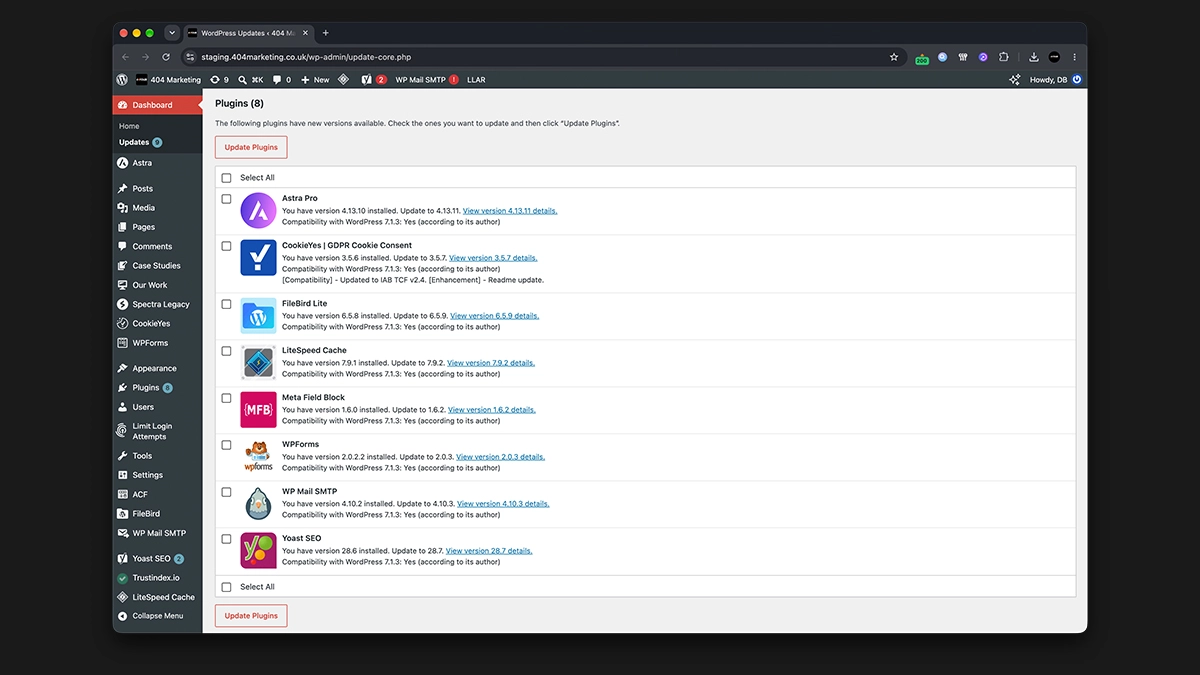
If you use WordPress, check for updates to WordPress itself, your plugins and your theme. Plugins add features, while the theme helps control your website’s appearance.
Before updating, confirm you have a recent backup and a recovery plan. For more involved changes, ask your developer to test them on a staging site: a separate copy of your website.
Follow the developer’s update instructions and compatibility information. If you haven’t updated the site in a long time, get advice before making several major changes together.
The WordPress updating guide provides the official starting point.
Afterwards, revisit the pages and features you checked earlier. Look for changed layouts, error messages and missing functionality.
Automatic updates need follow-up checks too. Record any update failures or repeat errors, and give someone responsibility for investigating them.
If you use a hosted website builder, the provider may handle the underlying software. However, you should still review connected apps and test your website after changes.
4. Test Forms, Bookings and Payment Journeys
Now check whether your website can do the jobs your business relies on.
For an enquiry form, submit a clearly labelled test using an email address you control. Then check both sides of the process:
- Does the visitor see a useful confirmation?
- Does your business receive the enquiry?
- Do any confirmation emails arrive?
- Does the message reach your customer management system, if you use one?
Try leaving a required field empty – the form should explain what you need to correct without wiping out everything you’ve entered.
For booking websites, check availability, time zones and confirmation messages. Make sure a test booking doesn’t block a genuine customer slot, and remove it afterwards.
For online shops, follow a product through the basket and checkout. Use your payment provider’s documented test process, ideally in a separate test environment. Don’t switch a busy live shop into test mode without a plan.
Check delivery charges and order notifications. A working “Add to Basket” button only proves one part of the journey works.
Finally, test again after anyone repairs a fault. Close the task when the full journey works, including the message or order reaching your business.
5. Check Mobile Usability and Basic Accessibility
Next, pick up your phone and repeat your main customer journey on a smaller screen.
Look for practical obstacles:
- Menus that won’t open or close.
- Text that forces you to zoom in.
- Buttons that sit too close together.
- Images or tables that run off the screen.
- Pop-ups that cover forms or contact details.
Check your cookie banner too. Visitors should still be able to reach its controls and use the page after making their choice.
Then try navigating on a computer using the Tab key. Can you see which link or button you’ve reached? Can you move through the main menu and form without getting stuck?
These simple checks can reveal barriers, although they don’t replace a full accessibility review.
When you find an issue, note the device, browser and page. A screenshot can help show a layout problem, especially if it doesn’t appear on every screen.
6. Find Broken Links and Missing Downloads
A page can look perfectly fine and still send visitors to the wrong place.
Each month, check the most important links: navigation menus, contact buttons, service links and any documents customers download.
If you offer a price list, brochure or menu, open the file itself. Confirm visitors can access it without needing to log in and that it contains the current version.
For larger websites, broken-link software can help identify any broken links. However, review its findings before making changes, because some websites block automated checks even when a link works for people.
When a link fails, update it to the correct destination. If you’ve permanently moved a page, ask your developer whether it needs a redirect, which forwards visitors from the old address to the relevant new one.
Avoid sending every missing page to your homepage. Someone looking for a specific service should reach the closest useful replacement.
7. Correct Outdated Business Information
Website maintenance also means checking whether your website still describes your business accurately.
Start with information that could affect a customer’s decision:
- Phone numbers and email addresses.
- Opening hours and holiday closures.
- Services and areas you cover.
- Prices, offers and availability.
- Team members and professional credentials.
Check wherever that information appears. You might update your contact page but leave an old number in the footer or a downloadable brochure.
For example, if your introductory offer ended last month, remove it from the service page, banner and enquiry form. Otherwise, visitors may expect a price you no longer honour.
You don’t need to rewrite every blog post each month. Prioritise pages customers use to enquire, buy or book, then schedule older content for review when it needs a meaningful correction.
If the information is accurate but confusing, our guide to writing website copy that converts can help you make the next step clearer.
8. Compare the Speed of Important Pages
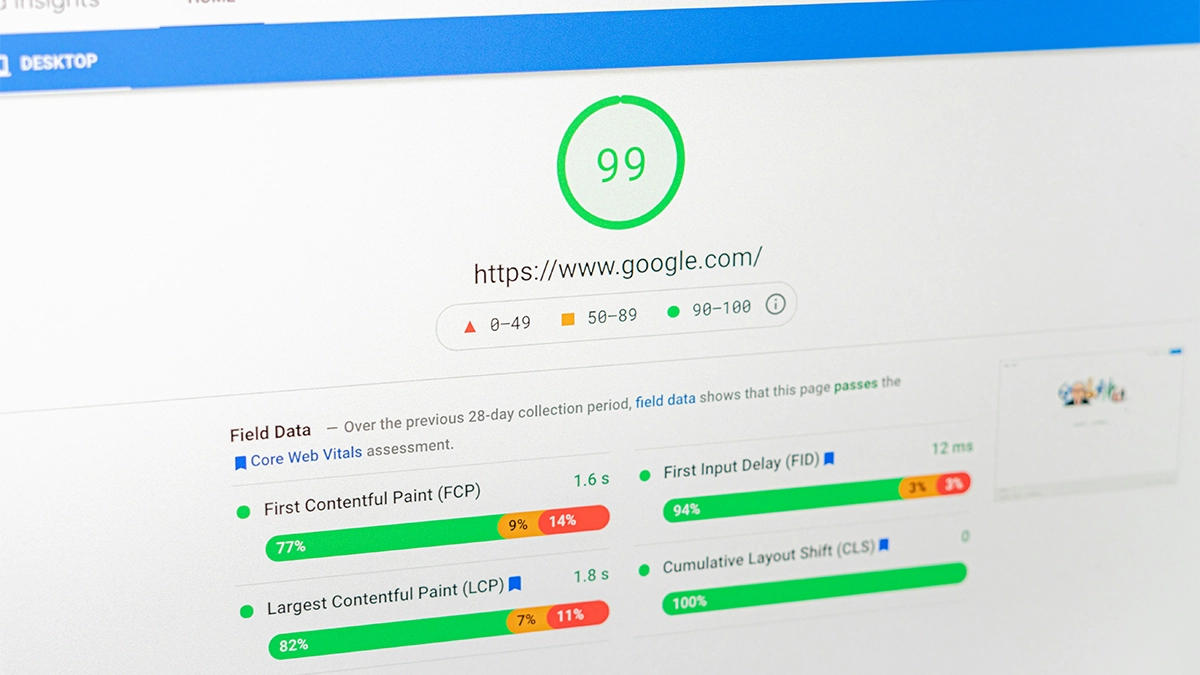
Run your chosen pages through Google PageSpeed Insights, then save the results alongside last month’s checks.
Test more than the homepage. A service page with a booking tool or a product page with several images may behave differently.
Review mobile and desktop results, but don’t panic over a small score change. Google explains that PageSpeed Insights combines test results and real-user data where available. Smaller websites may not have enough visitor data for the real-user section.
Look for a noticeable change you can investigate. Did a page slow down after you added a large video? Did a new review widget appear just before the problem started?
Record the page, date and recent changes. Then pass that information to whoever handles performance improvements.
Our guide to improving website speed for small businesses covers the fixes in more detail. During your monthly review, focus on spotting changes and checking whether previous fixes helped.
9. Review Security Alerts, Access and Renewals
Open the security reports from your website or hosting provider. Read any unresolved warnings rather than simply checking that a security tool exists.
Also review who can sign in. Does a former employee still have access? Does a freelancer still need full administrator permissions after finishing their work?
Give people the access their role requires. Use unique passwords and enable two-factor authentication where available, which adds another verification step when signing in.
The WordPress security guidance explains why limiting access and keeping software current help reduce risk. No single plugin can guarantee protection.
Next, check upcoming domain, hosting and essential plugin renewals. Confirm that payment details and renewal email addresses still belong to the business.
If your browser displays a security warning or you find an account you don’t recognise, contact your provider promptly. Don’t leave it in next month’s task list.
10. Record Problems, Assign Fixes and Retest
The final step in your monthly website maintenance checklist turns observations into action.
For every problem, record what happened, where it happened and who will resolve it. Then agree a deadline based on its effect on customers.
For example:
| Issue | Next Action | Priority |
|---|---|---|
| Enquiry form doesn’t deliver messages | Investigate delivery and retest the full process | Urgent |
| Old opening hours appear in the footer | Correct the footer and check other locations | High |
| A decorative image looks slightly blurry | Replace it with a suitable version | Routine |
Avoid making ten unrelated changes at once. Instead, fix the most disruptive issue first and check the result before moving on. That makes it easier to identify what helped or caused a new problem.
Carry unfinished tasks forward with a named person and a clear next step. “Someone should look at this” has a habit of becoming “nobody looked at this”.
What Needs Attention Between Monthly Reviews?
A monthly website maintenance checklist helps you review the whole picture. However, some work needs a different schedule.
Backups should run automatically at a frequency that matches how much information you can afford to lose. Daily backups may suit some websites, while busy shops and booking systems may need more frequent protection.
Security and uptime monitoring should run continuously where you have suitable tools or a provider. Uptime monitoring checks whether your website remains available. Make sure someone receives and responds to alerts.
Urgent security updates and broken customer journeys need prompt attention. Don’t wait for your calendar reminder if enquiries stop arriving or customers can’t pay.
Also repeat relevant checks after significant changes. If you update your booking system on Tuesday, test it on Tuesday.
Your monthly session then becomes a useful review of the work happening throughout the month.
What If Someone Else Maintains Your Website?
You can still use this checklist when a developer or agency handles the technical work.
Ask them to confirm what they checked, which issues they found and what still needs a decision from you. Meanwhile, you can review business information, offers and customer journeys from your side.
Our guide to what’s included in a website maintenance package can help you compare that work with your agreement.
If your hosting arrangement includes some upkeep, check the details before assuming it covers everything on this list. You can also explore our managed website hosting if you’d like support with hosting and essential website care.
Need a Hand With Your Monthly Website Checks?
You don’t need to solve every technical problem yourself. Knowing what works, what needs attention and who will fix it is a useful starting point.
At 404 Marketing, our website maintenance service covers one-off fixes and ongoing care, including updates, functionality testing and website health checks.
If you’re unsure where to begin, request a free website audit. We’ll help you understand what needs attention and choose a practical next step for your business.