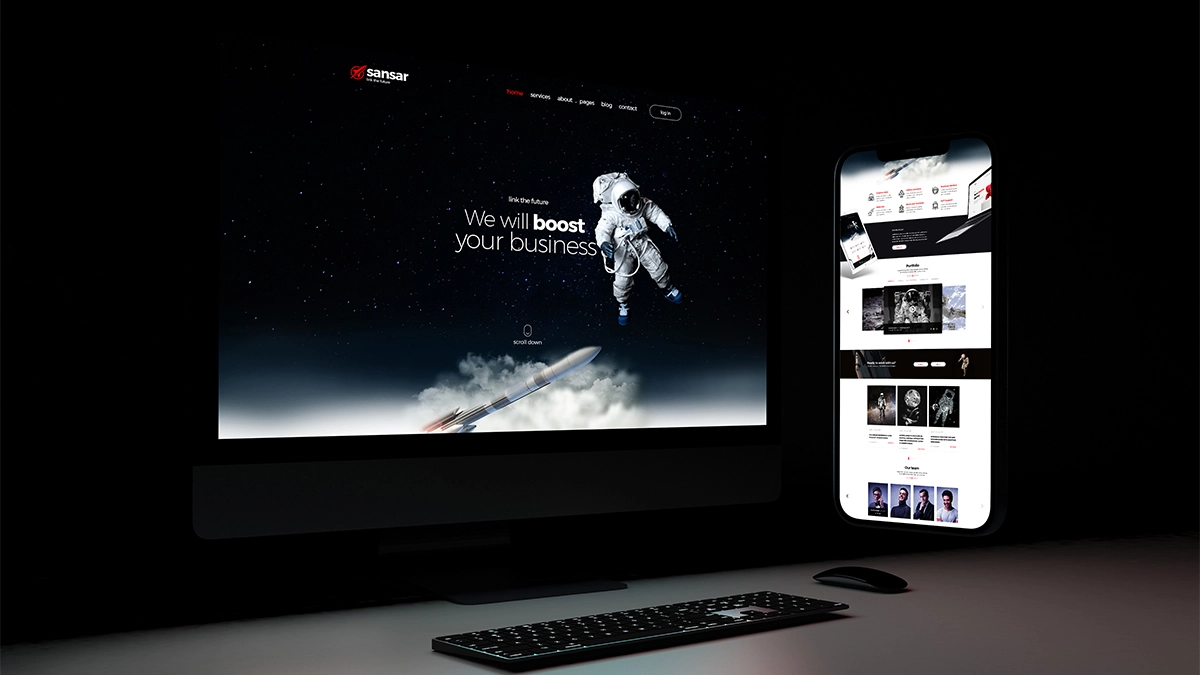
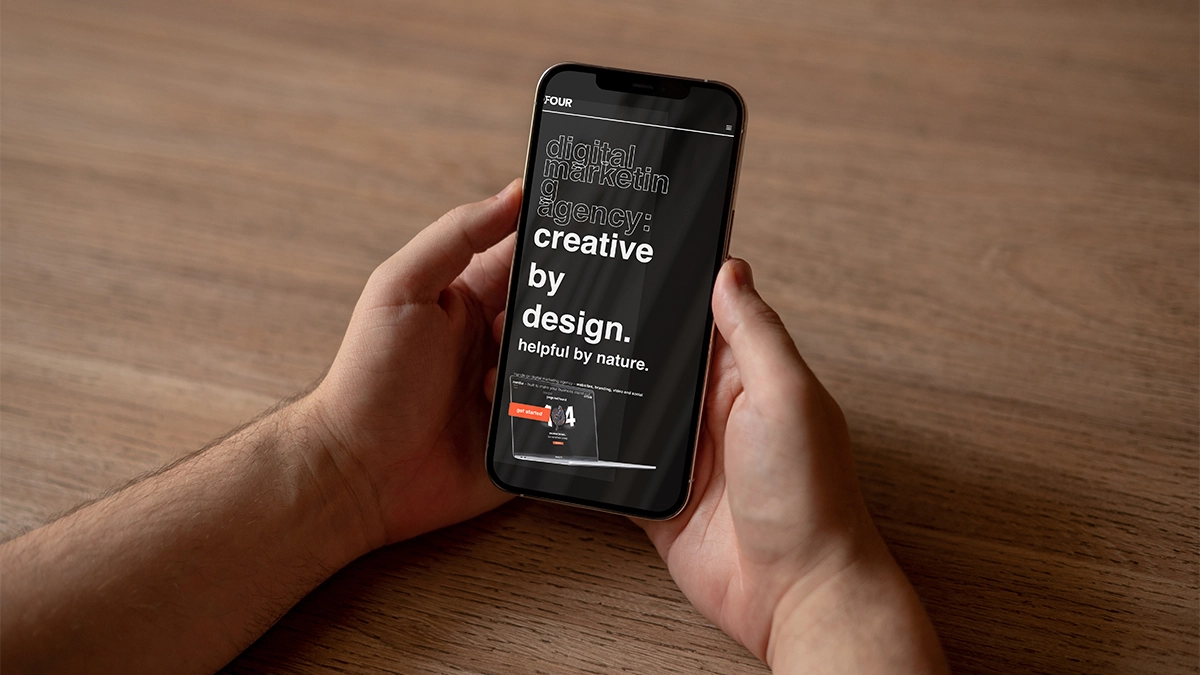
If you’ve ever opened your website on your phone and thought “Why does this look completely different?”, then you’re not alone.
Mobile responsiveness is one of the most common issues small businesses face with their websites. Pages look perfect on desktop, yet on mobile the layout falls apart, images crop strangely, buttons disappear, or everything feels squashed.
The truth is simple: most websites break on mobile because they were built with desktop in mind first.
And today, that’s risky. More than half of all website traffic comes from mobile devices. So, if your site isn’t mobile friendly, potential customers will leave long before they get to your content.
In this guide, we’ll break down why your website is not mobile friendly, the key reasons behind mobile layout issues, and practical steps you can take to prevent them.
Why Mobile Responsiveness Matters for Small Businesses
Before we dive into the technical reasons your site breaks on mobile, let’s look at why responsiveness affects your bottom line:
- User experience: If users struggle to navigate, they won’t stick around.
- SEO rankings: Google prioritises mobile-friendly websites.
- Conversions: A broken layout harms trust and lowers sales or enquiries.
- Brand perception: A polished mobile experience makes you look professional.
When your website fails on mobile, it creates a poor first impression, and for small businesses and startups, that impression matters.
1. CSS Problems: The Root of Most Mobile Issues
CSS (Cascading Style Sheets) controls how your website looks. When something breaks on mobile, there’s a good chance the CSS is involved.
Here are the most common CSS-related issues:
1.1 Missing or Poorly Written Media Queries
Media queries tell your website how to behave on different screen sizes. If they’re missing or incorrectly written, the layout won’t adapt.
For example:
@media (max-width: 768px) {
.container {
    width: 100%;
    }
}
Without rules like this, your desktop layout simply shrinks down, leaving content squashed or overflowing.
How to prevent it:
Make sure your theme or builder uses responsive breakpoints, and avoid custom CSS that overrides them unintentionally.
1.2 Fixed Elements That Don’t Scale
Designers sometimes use fixed widths, fixed heights, or fixed positioning to achieve specific effects. On mobile, these elements don’t shrink or move correctly, causing overlapping sections or disappearing content.
For example, a fixed element like:
width: 500px;
won’t fit on a 375px-wide phone.
How to prevent it:
Use percentage-based widths or responsive utility classes that adapt to screen sizes.
1.3 Overlapping Elements and Z-Index Issues
Sometimes layers overlap in unexpected ways because of incorrect z-index values. A button might be hidden behind an image, or text may appear behind a coloured background.
How to prevent it:
Review your stacking order and avoid unnecessary absolute positioning (more on that below).
2. Outdated Themes: The Silent Responsiveness Killer
If your WordPress theme hasn’t been updated in years, it might not support modern mobile standards. Older themes often:
- Lack responsive grid systems
- Use outdated CSS
- Aren’t compatible with modern page builders
- Don’t include mobile breakpoints
This is one of the biggest reasons small business owners ask “Why is my website not mobile friendly even though it looks fine on desktop?”
How to prevent it:
Choose a modern, well-supported theme. At 404 Marketing, we usually recommend Astra or block-based themes that are built with mobile-first design in mind.
3. Page Builder Issues: When Drag-and-Drop Causes Chaos
Page builders like Elementor, Divi, WPBakery, and even Gutenberg make it easier to design pages without coding. But if used incorrectly, they can cause major problems on mobile.
3.1 Hidden Desktop Settings Without Mobile Overrides
Many builders allow you to change font sizes, padding, margins, and alignment separately for desktop, tablet, and mobile.
If you only adjust desktop settings, the mobile version inherits them – even when they don’t fit properly.
3.2 Too Many Columns
A four-column layout on desktop might look lovely. On a mobile screen, those four columns stack into a long vertical list. If each column contains large images or text, it becomes overwhelming and slow.
3.3 Builder-Specific Bugs
Some builders render differently across devices. For example:
- Elementor sometimes duplicates spacing.
- Divi occasionally ignores mobile padding.
- Gutenberg block patterns break if custom CSS is applied.
How to prevent it:
Always check each builder’s mobile preview and test on real devices.
read more
Top 5 Best Website Builders in 2025
Need help building a mobile responsive website?
Check out our web design packages
4. Absolute vs Relative Sizing: The Hidden Reason Layouts Collapse
This is one of the biggest causes of mobile issues.
4.1 Absolute Sizing
Absolute values force elements to stay a specific size or position, for example:
- px (pixels)
- fixed positioning
- specific heights or widths
While fine for desktop, they break on smaller screens.
4.2 Relative Sizing
Relative values adapt based on the screen size:
- % (percentage)
- rem / em
- vh / vw
- auto spacing
Using responsive units ensures text, images, and sections scale naturally.
How to prevent it:
Avoid fixed values unless absolutely necessary. Focus on flexible units that respond automatically.
5. Image Ratios: When Pictures Stretch, Crop, or Overflow
Images are one of the most common reasons people ask, “Why is my website not mobile friendly?”
5.1 Incorrect Image Aspect Ratios
If the container for the image is square but the image is rectangular, it will crop or stretch on mobile.
5.2 Large Images Slowing Down Mobile Performance
Mobile users on poor signal connections struggle to load large images. Slow loading often causes layout shifts and broken sections.
5.3 Background Images Without Fallbacks
Some designs use background images that don’t scale properly, making text unreadable.
How to prevent it:
- Use responsive image ratios
- Optimise images for smaller screens
- Avoid text on background images
- Test in portrait and landscape orientation
6. Poor Container Spacing: Too Much Padding, Not Enough Space
Spacing looks different on mobile because the available width changes. A container with 200px left padding might look fine on a desktop, but push content off the screen on a phone.
Common spacing issues include:
- Huge padding or margins
- Columns with unequal spacing
- Buttons with oversized padding
- Text running too close to edges
- Full-width sections not behaving correctly
How to prevent it:
Use responsive spacing controls in your builder and reduce padding for mobile.
7. Inherited Desktop-Only Styles: The Silent Breaker
Many websites use custom CSS written specifically for desktop. Without mobile-ready overrides, those styles pass down and break the mobile layout.
For example:
h1 {
  font-size: 80px;
}
An 80px heading might look bold on desktop, but on mobile it’s massive, pushes content down, and breaks the flow.
Or:
margin-left: 150px;
On a small screen, the layout shifts off-centre, and users must scroll sideways.
How to prevent it:
Include mobile breakpoints in your CSS or avoid writing global desktop-only styles.
These are some of the most common mobile breakpoints:
- @media only screen and (max-width: 921px) /* TABLET */ {}
- @media only screen and (max-width: 781px) {}
- @media only screen and (max-width: 600px) {}
- @media only screen and (max-width: 544px) /* MOBILE */ {}
- @media only screen and (max-width: 425px) {}
- @media only screen and (max-width: 375px) {}
8. Navigation and Menu Issues
Another common responsiveness issue involves menus:
- Hamburger icon too small
- Menu items overlapping
- Dropdowns that don’t close
- Full-screen menus covering content
- Off-canvas menus not sliding correctly
Because navigation changes drastically on mobile, even small CSS conflicts can break the user experience.
How to prevent it:
Test menus on multiple phones and avoid over-customising theme navigation.
9. Forms and Buttons That Don’t Fit on Mobile
Buttons and input fields need enough space to tap. When forms are designed only for desktop:
- Fields overflow
- Buttons wrap onto multiple lines
- Labels overlap
- Touch targets become too small to use
How to prevent it:
Use mobile-friendly form plugins and ensure a minimum tap area of 44px.
10. Too Much Content on One Page
Mobile visitors scroll through content one section at a time. If your page is overloaded with:
- Large sections
- Complex layouts
- Wide tables
- Embedded videos
- Heavy animations
…it becomes nearly unusable on a mobile device.
How to prevent it:
Use a cleaner, more structured layout for mobile users.
11. Not Testing on Real Devices
A huge reason people ask “why website is not mobile friendly” is simple: it was never tested properly.
Preview modes in page builders aren’t always reliable. What looks fine in a simulator often behaves differently on an actual device.
How to prevent it:
Test on an iPhone, an Android device, a tablet, and multiple browsers.
Step-by-Step Troubleshooting Guide
If you’re unsure where to start, this simple step-by-step process will help you diagnose the most common reasons your website breaks on mobile. You don’t need to be a developer, just follow each step in order.
Step 1: Check Your Theme for Mobile Compatibility
Start by confirming that your theme supports responsive design.
What to look for:
- When was the theme last updated?
- Does the theme have a responsive grid system?
- Does it offer separate mobile controls?
If the answer is “no”, your theme may be the root cause of your mobile issues and upgrading to a modern mobile-first theme (Astra, Blocksy, GeneratePress, or a Gutenberg theme) is often the quickest fix.
Step 2: Test the Page Without Your Page Builder
Sometimes the builder causes the problem.
How to test:
- Create a blank page
- Add a single text block using your theme’s default editor
- Preview it on mobile
If this test page works but your designed pages don’t, the issue is likely caused by your page builder’s settings, column layouts, or mobile overrides.
Step 3: Inspect Custom CSS
Poorly written CSS is one of the biggest reasons small businesses ask “why website is not mobile friendly?”
Check for:
- Fixed widths (e.g., width: 500px;)
- Large margins or padding
- Absolute positioning
- Desktop-only font sizes
- Missing media queries
If something looks too rigid, it will almost always break on mobile.
Step 4: Review Your Column Layouts
Open your page builder’s mobile preview and check how columns stack.
Ask yourself:
- Are there too many columns?
- Are the images too wide?
- Is the spacing too tight or too large?
- Are items stacking in the wrong order?
Adjust your layout so mobile users get a clean, single-column experience.
Step 5: Test Your Navigation Menu
Navigation often behaves differently on mobile:
Look for:
- Hidden burger icons
- Menu items overlapping
- Dropdowns that don’t close
- Full-screen menus covering content
Fixing mobile navigation dramatically improves user experience.
Step 6: Check Image Sizes and Ratios
Images often break layouts when:
- Their aspect ratio doesn’t match the container
- They’re too large for mobile screens
- They’re set with fixed heights or widths
- Background images crop badly
Switching to consistent ratios (e.g., 16:9, 4:3, 1:1) solves most issues.
Step 7: Remove Excessive Padding and Margins
Large spacing looks fine on desktop but causes disasters on mobile.
Check:
- Top and bottom padding on hero sections
- Left and right margins on text
- Spacer blocks or empty columns
Reduce padding by at least 50% for mobile.
Step 8: Disable Plugins One by One
Sometimes a plugin injects CSS or scripts that conflict with your layout.
Test your site while deactivating plugins individually, especially:
- Sliders
- Pop-ups
- Animation libraries
- Page-building add-ons
If your layout suddenly works, you’ve found the culprit.
Step 9: Test on a Real Device
Builder previews aren’t always accurate.
Before making final changes, check the site on:
- An iPhone
- An Android device
- Chrome, Safari, Edge
- Portrait and landscape modes
Real-device testing reveals issues you won’t spot in a simulator.
Step 10: Run a Google Mobile-Friendly Test
Use Google’s own tool to confirm your site meets mobile standards:
search “Google Mobile-Friendly Test”
It will highlight problems like:
- Text too small
- Clickable elements too close
- Content wider than screen
- Resources blocked
Fixing these improves your SEO and user experience.
Need help building a mobile responsive website?
Check out our web design packages
How to Fix Mobile Issues on Your Website
Here’s a practical checklist you can use:
- Use a modern, mobile-first theme:
Astra, GeneratePress, Blocksy, and Gutenberg block themes work well. - Review all custom CSS:
Check for fixed widths, desktop-only margins, and oversized text. - Use responsive units:
Replace px with %, rem, vw, and auto where possible. - Audit your page builder layouts:
Check column stacking, mobile spacing, and hidden elements. - Re-size images properly:
Use consistent image ratios and compress files for speed. - Test on multiple screens:
Don’t rely on the builder preview alone. - Use a caching and optimisation plugin:
This reduces layout shifts and speeds up loading.
Final Thoughts
Small businesses often focus on how their website looks on desktop, yet most customers will experience it on their phone first. Understanding why your website is not mobile friendly helps you fix layout problems, improve user experience, boost search rankings, and build trust with your audience.
If your website is breaking on mobile and you’re not sure where to start, we can help. At 404 Marketing, we rebuild websites with modern, responsive layouts that actually work across every device.